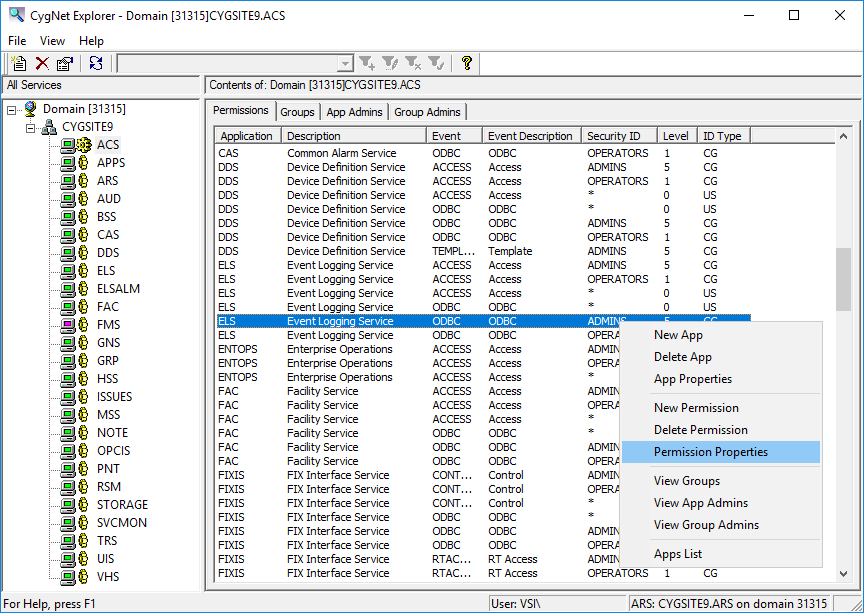
The Access Control Service (ACS) is the CygNet Software security administration service. Its database contains the list of applications and events for which security is required, as well as the list of users and their authorization levels. In terms of security each service is an application. Security can also be applied at the record level in a service. The ACS can provide security for custom applications provided they can communicate with the ACS. It functions in concert with the operating system security (Microsoft Windows) to protect access to your system.
Click the following image to see an example Access Control Service:
The following table lists and describes the context menu options that are displayed when you right-click in the ACS pane. Each tab contains a different set of options on its context menu.
| Option | Description |
|---|---|
| Permissions Tab | |
| New App |
Click this option to create a new application. See Configuring Applications and Events. |
| Delete App |
Highlight an existing application and click this option to permanently delete a record. See Configuring Applications and Events. |
| App Properties |
Highlight an existing application and click this option to view its properties. See Configuring Applications and Events. |
| New Permission |
Click this option to create a new application. See Assignment Permissions to Events. |
| Delete Permission |
Highlight an existing permission and click this option to permanently delete a record. See Assignment Permissions to Events. |
| Permission Properties |
Highlight an existing permission and click this option to view its properties. See Configuring Applications and Events. |
| View Groups |
Click this option to switch to the Groups tab. |
| View App Admins |
Click this option to switch to the App Admins tab. |
| View Group Admins |
Click this option to switch to the Group Admins tab. |
| Apps List |
Click this option to view the Applications List dialog box. See Configuring Applications and Events. |
| Groups Tab | |
| New Group |
Click this option to create a new group. See Configuring CygNet Groups. |
| Delete Group |
Highlight an existing group and click this option to permanently delete a record. See Configuring CygNet Groups. |
| Group Properties |
Highlight an existing group and click this option to view its properties. See Configuring CygNet Groups. |
| New Group Member |
Click this option to add a member to a group. See Configuring CygNet Groups. |
| Delete Group Member |
Click this option to delete member from a group. See Configuring CygNet Groups. |
| Group Member Properties |
Click this option to view group member properties. See Configuring CygNet Groups. |
| View Permissions |
Click this option to switch to the Permissions tab. |
| View App Admins |
Click this option to switch to the App Admins tab. |
| View Group Admins |
Click this option to switch to the Group Admins tab. |
| Groups List |
Click this option to view the Groups List dialog box. See Configuring Group Administrators. |
| App Admins Tab | |
| New App |
Click this option to create a new application. See Configuring Applications and Events. |
| Delete App |
Highlight an existing application and click this option to permanently delete a record. See Configuring Applications and Events. |
| App Properties |
Highlight an existing application and click this option to view its properties. See Configuring Applications and Events. |
| New App Admin |
Click this option to create a new application administrator. See Configuring Application Administrators. |
| Delete App Admin |
Highlight an existing application administrator and click this option to permanently delete a record. See Configuring Application Administrators. |
| App Admin Properties |
Highlight an existing application administrator and click this option to view its properties. See Configuring Application Administrators. |
| View Permissions |
Click this option to switch to the Permissions tab. |
| View Groups |
Click this option to switch to the Groups tab. |
| View Group Admins |
Click this option to switch to the Group Admins tab. |
| Apps List |
Click this option to view the Applications List dialog box. See Configuring Applications and Events. |
| Group Admins Tab | |
| New Group |
Click this option to create a new group administrator. See Configuring Group Administrators. |
| Delete Group |
Highlight an existing group administrator and click this option to permanently delete a record. See Configuring Group Administrators. |
| Group Properties |
Highlight an existing group administrator and click this option to view its properties. See Configuring Group Administrators. |
| New Group Admin |
Click this option to add a new group administrator to a group. See Configuring Group Administrators. |
| Delete Group Admin |
Click this option to delete group administrator from a group. See Configuring Group Administrators. |
| Group Admin Properties |
Click this option to view group administrator properties. See Configuring Group Administrators. |
| View Permissions |
Click this option to switch to the Permissions tab. |
| View Groups |
Click this option to switch to the Groups tab. |
| View App Admins |
Click this option to switch to the App Admins tab. |
| Groups List |
Click this option to view the Groups List dialog box. See Configuring Group Administrators. |
More:
 ACS Configuration File Keywords

|
|
|

